
In this article, we will review the case where there is a need to change the default authentication type from Email to Microsoft. This may be useful if the PPM Express tenant was registered using the Email authentication type by mistake or just to demo the tool. When the Email option is selected as the default, it is not possible to allow auto-registration for users from one Microsoft tenant. If you need user auto-registration, you can change the default authentication type.
To change the default authentication type, perform the following:
1. Open the Tenant Settings page from the gear button.
2. If nothing is defined under the Permitted Organization for Auto Registration section, the Email option was selected for tenant creation. The Auto Registration option will be disabled.

To switch to the Microsoft authentication type and enable auto registration, it is required to link your Microsoft organization to PPM Express. Click on the 'Link your tenant with Microsoft organization' link.

3. If you have a Microsoft connection added to the PPM Express tenant, you will be able to select the existing one for linking.
If you have not added a Microsoft connection yet or added a restricted connection only, then from the Connection drop-down select the Grant Permissions option.

4. Enter the tenant Global Administrator credentials in order to grant the required permissions. If you do not have a Global Administrator account for Microsoft, please refer to the Admin Team in your organization.
In the next window, click Accept to grant the PPM Express app the required permissions.

5. Once the permissions are granted, you can add a connection by opening the Connection drop-down again and clicking the Add New Connection option.

6. Sign in to your Microsoft account.
7. The connection will be added to PPM Express. Click the Link button to proceed.

8. Type CONFIRM to link your PPM Express tenant to the selected Microsoft (Office 365) organization as the default authentication type. Click Confirm.
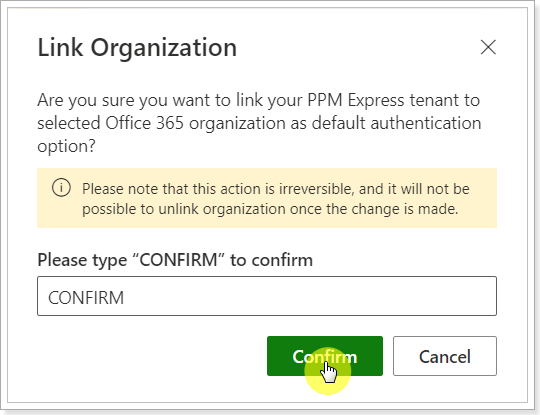
Microsoft authentication type will become the default one. The Auto Registration option will be active.