
This article describes how to invite users to the PPM Express tenant.
There are three ways to register users in PPM Express:
- Microsoft/GSuite Sign-Up: Users from the same Microsoft or GSuite tenant can automatically join the PPM Express tenant.
- Invitations: The PPM Express Administrator or other users can invite new users to the tenant via email.
- Entra ID (formerly Azure AD) Sync: Users can be synchronized from Entra ID (formerly Azure AD).
-
Okta: The Okta authentication method can be enabled and configured at the tenant level, allowing users from the Okta tenant to sign in to PPM Express using this method. For detailed instructions on configuring Okta authentication, please refer to this article.
To learn more about enabling Okta authentication for your PPM Express tenant, please contact our Support team at support@ppm.express.
All users in PPM Express are linked to resources; if not manually, they are linked automatically. For more details, please refer to the article: How Resources are linked with Users in PPM Express.
Microsoft/GSuite Sign-Up:
Users who are added to PPM Express may have two types of licenses:
- User type - users with this license type may have a full set of PPM Express permissions. By default, users with the User license type have manage resources permissions and permissions to view all Projects and Portfolios, Programs, and edit Projects, Programs, and Portfolios they own. PPM Express administrator defines the permission level for each user with a User license type on the People Management page.
- Team Member type - users with Team Member license type have read permissions and can view all PPM Express Portfolios, Programs, and Projects by default. Using the 'Collaborate on' permission, the PPM Express administrator can grant Team Members permission for editing PPM Express tasks. On the People Management page, the PPM Express administrator may define which Portfolios, Programs, and/or Projects these users have permission to review and/or edit tasks for.
The PPM Express Administrator should open the Settings => Tenant Settings page => Access settings and set the 'Auto Registration' setting to 'ON' (it is set to 'ON' by default).

"Microsoft " option
1. Visit the PPM Express application site at https://app.ppm.express/signup
2. Now you are redirected to the PPM Express landing page. Select the Sign Up with Microsoft Account option.

3. Select the account you will be using to authenticate to PPM Express.
4. Click Accept to confirm that you allow PPM Express to access your Microsoft account details.
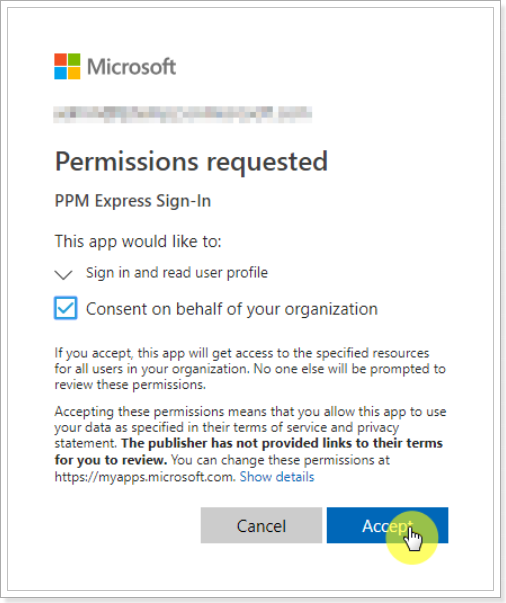
5. Click Sign Up to finish the process.
"Google" option
1. Visit the PPM Express application site at https://app.ppm.express/signup
2. Now, you are redirected to the PPM Express landing page. Select the Sign Up with Google Account option.

3. Sign in with your Google account. Enter your email address and click Next to proceed.
4. Enter your password for your Google account. Click Next to proceed.
5. Click Accept if you allow the PPM Express app and Google to use your information in accordance with their respective terms of service and privacy policies.
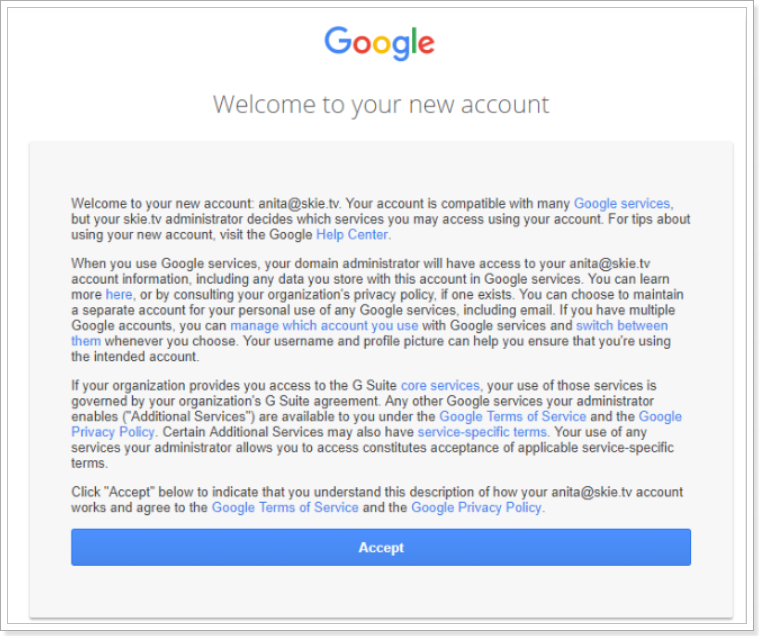
6. Click Sign Up to finish the process.
When the users are registered within your PPM Express tenant, please refer to the How to assign licenses to the Users article to assign the required license to each user.
Invitations via email
To invite users with Microsoft, GSuite, personal Google accounts, or any other email provider to your PPM Express tenant, the PPM Express Administrator should go to Settings > Tenant Settings > Access Settings and set 'Auto Registration' to 'OFF' (this is 'ON' by default).
If you prefer to allow automatic registration for users from the same Microsoft or GSuite tenant, you can leave 'Auto Registration' set to 'ON.' However, if your organization wants to control access by invitation only, ensure 'Auto Registration' is set to 'OFF.'
All PPM Express users can invite other people using the 'Invite People' button if the 'Open Invites' option is enabled by the PPM Express Administrator on the Tenant Settings page. If this option is off, then only PPM Express Administrators can invite other users.

To invite users, the PPM Express administrator can select the Invite People option on the People Management page or the 'Invite People' button at the top of any page.

In the Invite People screen, enter the email addresses of the users you want to invite to the PPM Express tenant, assign the required license type, and define their permission level.
It is also possible to invite users from the Project/Programs/Portfolio dashboard => Share Project page if the 'Open Invites' option is enabled by the PPM Express Administrator on the Tenant Settings page. To do this, open the Project, Programs, or Portfolio dashboard => Configure menu => Share => type the email of the user you need to invite.
Click on the email that appears below. The user will appear in the users list on the Share Project page.
The Project Manager can grant the required permission, which the PPM Express Administrator can change from the People Management page.

It is possible to invite one or multiple users at once. Please note that if you invite multiple users at once, the selected permissions will be granted to all users invited. If you need to define different permission levels for the users, the invitations should be sent separately.
To find detailed information about permissions and license types in PPM Express, please refer to this article.

Also, using the Permitted Authentication Providers option on the Tenant Settings page, the PPM Express Administrator can allow/restrict the authentication providers for the tenant. Only the authentication providers turned on for the organization will appear on the 'Log in to PPM Express' page for the tenant. For example, if the Administrator restricts the Email authentication type, the invited users will not be able to log in using this authentication option and will see only Microsoft or Google types.

Also, if the default authentication provider is pre-selected in the Required Authentication Provider field for new invitations, PPM Express Administrators can change the authentication provider when inviting new users. For all other invitations, the default authentication provider is pre-selected, and you cannot change it.

When users click Join in the invitation email, they will see only the chosen authentication option.

However, on the login page, users will see all the providers allowed (Microsoft and Google, for example).
If 'Any' is selected as the Default authentication provider for the invitation, all allowed providers will be available when users click the Join button in the invitation email.
As the invitations are sent, the PPM Express Administrator will see the 'Pending invite' status for these users on the People Management page.
Suppose the user did not receive an email or did not join at once. In that case, it is possible to resend the invitation by opening the user management menu and selecting the 'Resend invitation' option.
To check the PPM Express tenant the user was invited to, users can open the 'My Account' settings.

If the user was invited to several PPM Express tenants and signed up to these tenants using one Microsoft, GSuite, or personal Email account, the user can switch between PPM Express tenants in the 'My Account' settings.
When users are registered in your PPM Express tenant, please refer to the "How to assign licenses to the users" article to assign the required license to each user.